Auto Rigging: How to Rig a 3D Model Automatically
Rigging by hand can take hours. Auto rigging does the first pass in minutes. This guide explains what an auto rigger actually does, which tools handle which body types, and how to spot a bad auto rig before it ruins your animation.
By the Bake3D teamUpdated 7 min read
Short answer
Auto rigging is software that adds a skeleton and skin weights to a 3D model for you. You upload the model, the tool finds the body parts, places joints inside them and works out how the skin should bend. Most auto riggers only handle humanoid characters in a T-pose or A-pose. A few newer tools also rig animals and creatures. Always test the rig with a few hard poses before you animate.
How we checked this: The tool details come from each vendor's own documentation, read on 25 September 2026, and are linked below. We did not run the same model through every tool, so this is not a quality ranking. The Bake3D details come from our own rigging engine.
A rig is a skeleton inside a 3D model, plus skin weights that tell the surface how to follow each bone. If those words are new, start with what rigging is. An auto rigger builds both for you. What used to be an afternoon of placing bones and painting weights can become a few minutes of checking.
But “automatic” does not mean “always right”. Knowing what the tool does behind the scenes helps you pick the right one and fix what it gets wrong.
What an auto rigger does
Every auto rigger does four jobs, in this order.
- Finds the body parts. Where is the head? Which parts are legs? Is there a tail?
- Places the joints. It puts each joint where the bend should happen, like inside the knee or at the base of the neck.
- Builds the chains. It links the joints into a family tree, from the hips out to the fingers, toes and tail tip.
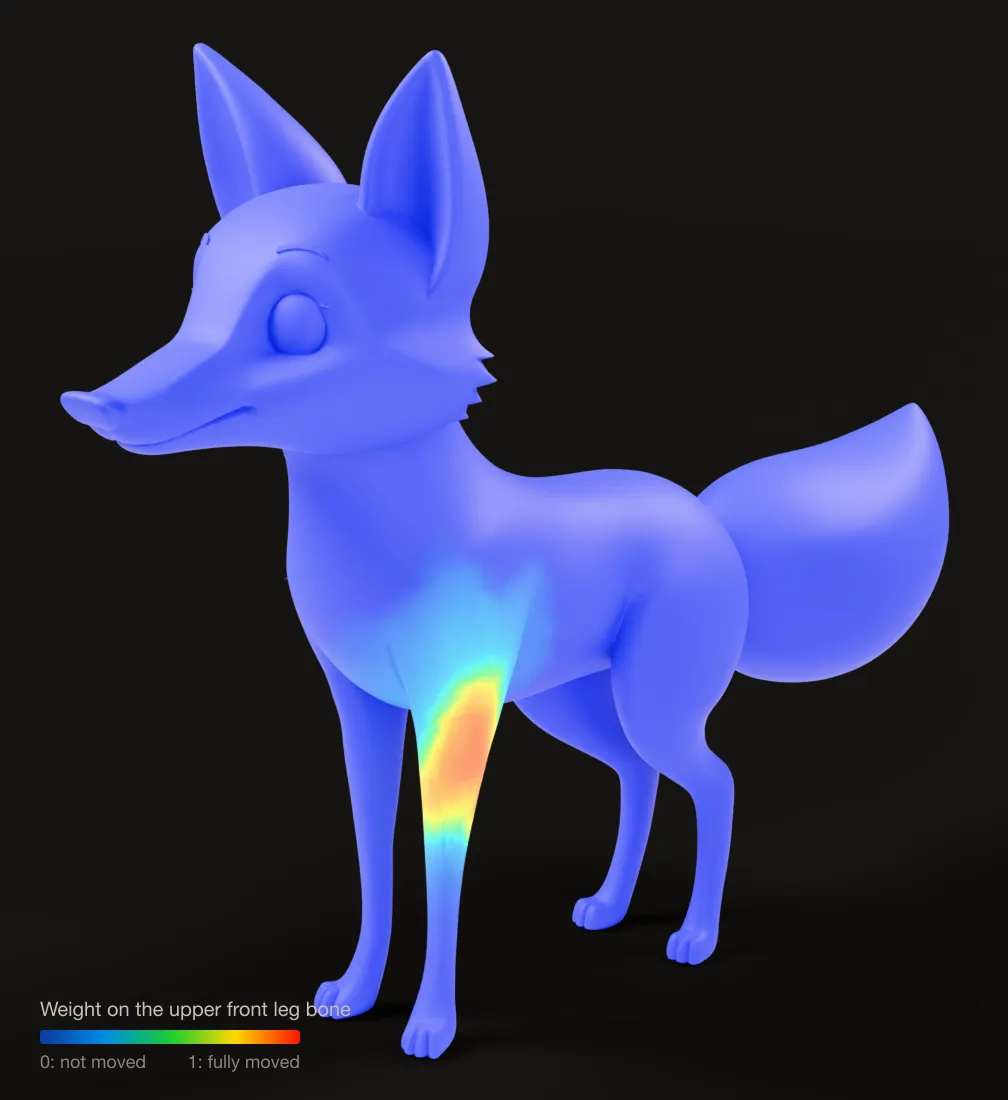
- Computes skin weights. It decides how much each point on the surface follows each bone.
Some tools also add animation controls, like foot handles and inverse kinematics. Many add ready-made animations you can apply right away.
How auto riggers find the joints
Tools use four main ways to place joints. The method tells you a lot about what the tool can handle.
| Method | How it works | Examples |
|---|---|---|
| Markers you place | You drop a few points, like wrists, elbows, knees and groin. The tool fills in the rest. | Mixamo |
| Templates you fit | You pick a ready skeleton, like a horse or a spider, and drag it into place. | Rigify, Mesh2Motion |
| Shape detection | The tool studies the mesh and guesses the skeleton type and joint spots. | Meshy, Tripo, Auto-Rig Pro Smart |
| Views and roles | The tool looks at the model from several sides, plans joints for each body part, and labels them by role. | Bake3D |
Marker and template tools are only as flexible as their skeleton list. If there is no template for a crab, you cannot rig a crab. Detection tools are faster, but they can guess wrong on unusual shapes.
How skin weights are worked out
Once the joints exist, the tool must decide how the skin follows them. Most tools spread each bone’s pull across the nearby surface, strongest close to the bone and fading with distance. Blender’s “Automatic Weights” option uses a method like this, based on heat spreading out from each bone.
Problems show up where two body parts touch or sit close together. An arm resting on the hip can end up tied to the hip. A tail close to a leg can pull the leg. That is why a neutral pose with space between the limbs gives better weights.
Rigid parts need the opposite. A robot plate, a wheel or a car door should follow one bone 100%, with no soft blend. Good tools detect rigid parts and keep them stiff.
Which body types can auto riggers handle?
This is the biggest difference between tools. Here is what each one says it supports, from its own documentation as of 25 September 2026.
| Tool | Body types it rigs | Price |
|---|---|---|
| Mixamo | Two-legged humanoids only | Free with an Adobe ID |
| AccuRIG 2 | Two-legged characters, including hoofed legs | Free, Windows only |
| Rigify (Blender) | Any body you build, with starter rigs for human, cat, wolf, horse and shark | Free |
| Auto-Rig Pro (Blender) | Humanoids automatically; animals and spiders by placing limbs yourself | $50 full, $25 lite |
| Mesh2Motion | Templates for human, fox, horse, bird, dragon, kaiju, spider, snake and fish | Free, open source |
| Meshy | Humanoid, quadruped and a beta mode for other creatures | Rigging is 0 credits in the web app |
| Tripo | Biped, quadruped, hexapod, octopod, bird, serpent and sea creature | 20 credits in Tripo Studio |
| Everything Universe | Humans, four-legged animals, insects, birds, fish, snakes, and vehicles split into parts | 5 credits per rig |
| Bake3D | Any body plan: legs, arms, wings, tails, tentacles, fins and rigid parts like wheels | 25 credits, only for models it generates |
A tool that rigs a creature does not always animate it well. Meshy says quadrupeds only get a walk. Tripo gives each non-human type one walking clip. Check the animations you need, not just the rig. Our Mixamo alternatives guide compares the animation side in more detail.
How to auto rig a model, step by step
These steps work for most tools.
- Clean up the mesh. Join it into one object if the tool asks for that. Delete stray parts, floating bits and hidden faces.
- Center it and set the scale. Put the feet on the ground at the center of the scene. In Blender, apply the scale and rotation before you export.
- Pose it neutrally. Arms out to the side or angled down. Legs slightly apart. See A-pose vs T-pose for which to pick.
- Export a format the tool reads. FBX, OBJ and GLB are the common ones.
- Upload and pick the body type, or place the markers.
- Check the joints. Knees inside knees, elbows inside elbows, the neck at the base of the head.
- Test hard poses. Bend, twist and lift each limb.
- Export the rigged model as FBX or GLB for your engine.
How to check an auto rig in two minutes
Run these tests before you spend time on animation.
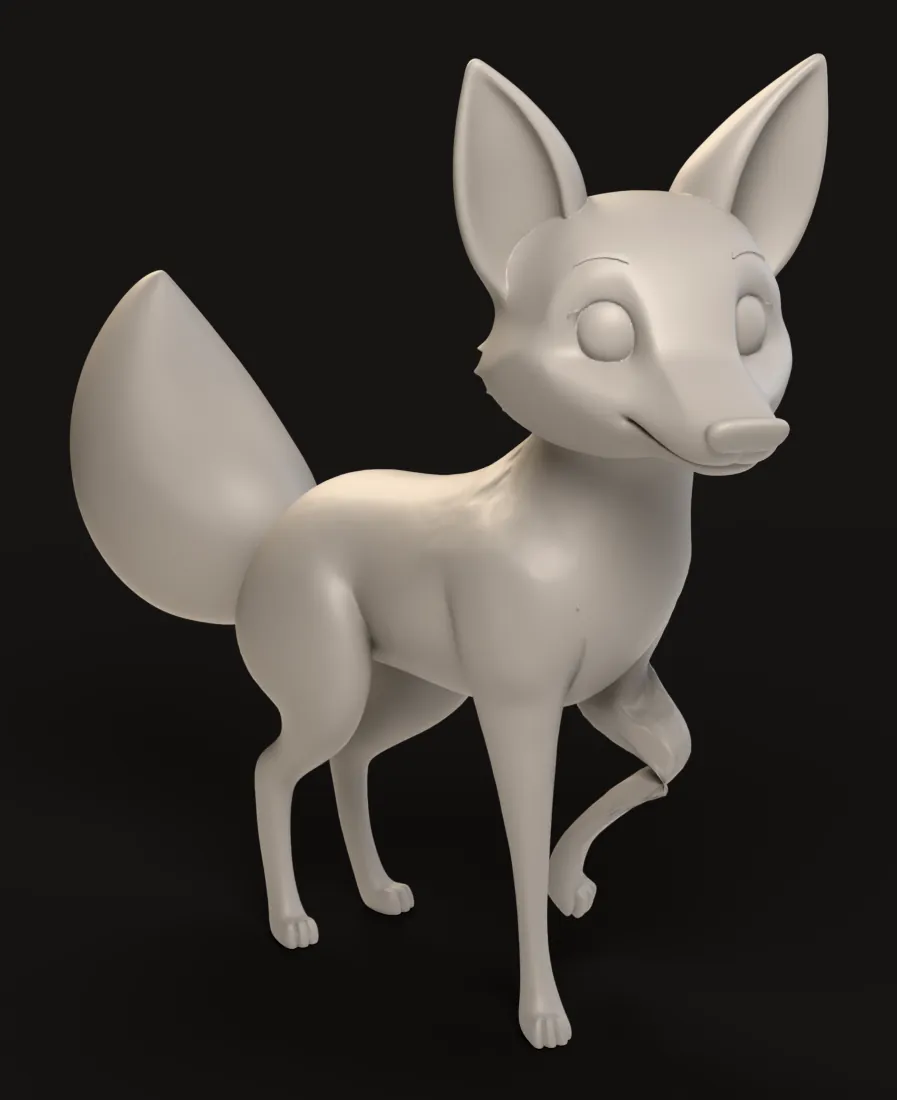
- Bend each knee and elbow to about 90 degrees. Look for collapsing, pinching or tearing.
- Twist the neck and forearms. The skin should turn smoothly, not wring into a thin band.
- Lift one leg at a time. Only that leg and its hip should move.
- Move the tail, ears or wings, if your model has them. They should not drag the body.
- Spin wheels and open doors on machines. Rigid parts should stay rigid.
If one area fails, fix the weights there with weight painting. If many areas fail, try a better pose or a different tool. Our rig checklist covers this in more depth.
Auto rigging animals, creatures and machines
Humanoids are the easy case. Every tool has a human skeleton. Things get harder when the body is different:
- Four-legged animals need legs that bend in the right places. On the hind legs of a dog or a horse, the joint that points backward is the ankle, not the knee.
- Birds and dragons need wings that fold, and often a separate pair of legs.
- Spiders and insects need six or eight legs that do not tangle.
- Snakes, tails and tentacles need long chains with many joints.
- Vehicles and robots need rigid parts that turn around hinges and axles.
Bake3D was built for this problem. It names each chain by its role, like leg, wing, tail, tentacle or fin, instead of assuming a human skeleton. So its presets and described motions can find the legs on a spider or the wheels on a car. You can see the four-legged case in rig a quadruped from one image.
Auto rigging in Blender
If you work in Blender, you have three good options.
- Rigify is built in. Pick a starter rig, like Human, Cat, Wolf or Horse, and fit its bones to your model. Then generate the rig and bind the mesh with Automatic Weights. Rigify itself does not create skin weights.
- Auto-Rig Pro is a paid add-on. Its Smart feature places humanoid bones for you. For animals, you place its modular limbs by hand.
- Import a rig from elsewhere. Rig in another tool, export FBX or GLB, and import it into Blender.
Our guide on how to rig a character in Blender walks through the manual and Rigify routes.
When to rig by hand instead
Auto rigging is the right start for most projects. Rig by hand, or fix a lot by hand, when:
- It is your main character and will be seen up close.
- The face needs detailed expressions.
- The body is so unusual that no tool has a matching template.
- The rig must follow a studio standard, like exact bone names for a shared animation library.
Start from a picture instead
If you do not have a 3D model yet, you can skip a step. Bake3D makes the model from one image or a text description and rigs it in the same job, for any body type. New accounts get 70 free credits, enough for one rigged model with a short first animation. Try it on the image to 3D page.
Questions people ask
What is the best free auto rigger?
For humanoid characters, Mixamo is free with an Adobe account. In Blender, Rigify is free and can build rigs for people and some animals, but you place the bones yourself. Mesh2Motion is free, open source and runs in the browser, with templates for humans, animals, birds, spiders, snakes and fish.
Can you auto rig a quadruped?
Yes, with some tools. Mixamo cannot. Meshy, Tripo, 3D AI Studio, Mesh2Motion and Everything Universe list four-legged animals. Check what animation you get afterward, because several of them only offer a walk for non-human rigs.
Is auto rigging good enough for games?
Often, yes, for background characters, prototypes and simple motion. Main characters usually need a check and some fixes by hand, especially at the shoulders, hips and face.
Does auto rigging work on any pose?
Most tools want a neutral pose, like a T-pose or an A-pose, with arms and legs away from the body. Crossed legs, arms pressed to the sides or a sitting pose often fail.
Can Bake3D rig a 3D model I already have?
Not today. Bake3D makes the 3D model from your picture or text description and rigs it in the same job. To rig an existing mesh, use one of the other tools in this guide.
Sources
About this guide
Written and kept up to date by the Bake3D team. We build a tool that turns one image into a textured, rigged and animated 3D model, and we test the steps in our guides on our own files. First published . See how we write and check guides, or send a correction to hello@bake3d.ai.
Keep reading
Rigging tools
Mixamo Alternatives for Animals, Creatures and Robots
Mixamo only rigs humanoids. Compare free and paid Mixamo alternatives, from AccuRIG and Rigify to AI tools, by the body types they can rig.
Rigging basics
What Is Rigging in 3D Animation?
Rigging gives a 3D model a skeleton so it can move. Learn what bones, joints, skin weights and weight painting are, with simple examples.
Rigging
How to check an AI-generated 3D rig
Review geometry, joint placement, skin weights, motion and export quality before using an AI-generated character or object in production.