A-Pose vs T-Pose: Which Is Better for Rigging?
Nearly every 3D character starts life standing with its arms out. The only question is how far out. Straight to the sides is a T-pose. Angled down is an A-pose. The choice changes how the shoulders bend, which tools accept the model, and how easy it is to share animations.
By the Bake3D teamUpdated 5 min read
Short answer
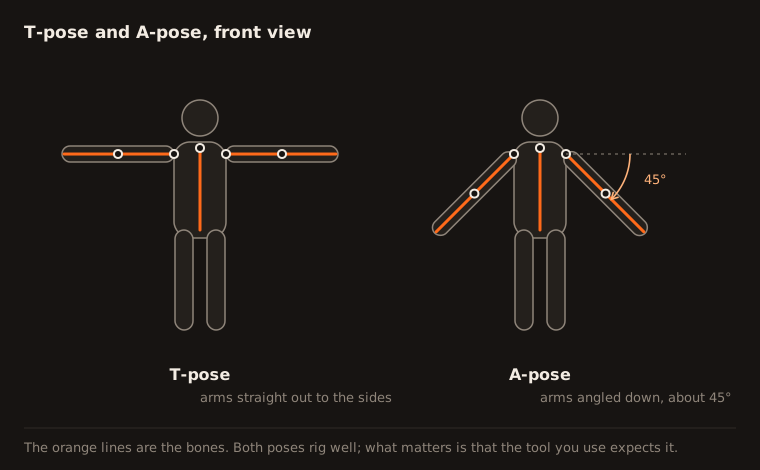
A T-pose has the arms straight out to the sides, like the letter T. An A-pose has the arms angled down, often around 45 degrees, like the letter A. Many artists find the A-pose bends the shoulders more naturally, while the T-pose is what some tools require, such as Unity's Humanoid rig and the VRM avatar format. For AI image to 3D, a relaxed A-pose with the arms clear of the body works well, and you can switch poses later when you retarget.
How we checked this: The tool requirements come from Unity's manual, the VRM specification, Unreal Engine's retargeting docs, Reallusion's manuals, Adobe's Mixamo FAQ and Meshy's API docs, read on 25 September 2026. The notes on non-human rest poses come from how Bake3D's own rigging treats standing, seated and hanging models.
Before a character can be rigged, it needs a rest pose. This is the pose the model stands in while the skeleton is placed and the skin weights are worked out. Everything the character does later is measured from this pose. So a small choice at the start affects every animation after it.
What is a T-pose?
In a T-pose, the character stands straight, facing forward, with both arms stretched straight out to the sides. From the front, the body looks like a capital T.
The T-pose is easy to set up in software. The arms line up with one axis, so bones are simple to place and mirror. It has been a default for a long time, and many older rigs and tools expect it.
What is an A-pose?
In an A-pose, the arms point down and out at an angle, often around 45 degrees. From the front, the body looks more like a capital A.
The A-pose is closer to how arms rest in real life. That is why many modern character bases use it.
A-pose vs T-pose at a glance
| T-pose | A-pose | |
|---|---|---|
| Arms | Straight out to the sides | Angled down, often around 45 degrees |
| Shoulders | Stretched and raised | Closer to relaxed |
| Arms at the sides later | Skin must stretch a long way | Less stretching needed |
| Arms raised overhead later | Less stretching needed | More stretching needed |
| Required by | Unity Humanoid, the VRM avatar format | Few tools require it |
| Common in | Older rigs, many game pipelines | Newer character bases, scans |
Why the pose matters for rigging
Skin weights are worked out in the rest pose. The further a body part has to move from that pose, the more the skin stretches and squashes.
Think about the shoulder. Most of the time, a character’s arms are down or in front. From a T-pose, the arms have to drop about 90 degrees to get there. The skin around the shoulder and armpit stretches a lot. From an A-pose, the arms only drop about 45 degrees. Many artists find this gives better shoulders in everyday poses. Reallusion, for example, made its newer Character Creator base an A-pose partly to allow better arm and armpit shapes.
The trade-off: poses with the arms overhead, like climbing or cheering, stretch more from an A-pose.
Which pose do popular tools expect?
- Unity Humanoid says the T-pose is the default pose it requires. If a model is not in a T-pose, the avatar setup warns you and offers Enforce T-Pose to fix it.
- VRM, the avatar format used by VRoid and many VTubers, defines a required T-pose with the arms level and the palms facing down.
- Unreal Engine can retarget between any two characters, as long as their reference poses match. If one is in a T-pose and the other in an A-pose, you adjust the retarget pose of one of them.
- Mixamo asks for a default or neutral pose. It does not name the T-pose, but it warns that posed or uneven characters may fail.
- AccuRIG from Reallusion recommends a T-pose or an A-pose, and also supports relaxed and scanned poses.
- Meshy’s multi-image to 3D API has a setting to generate the model in an A-pose or a T-pose.
How to switch between A-pose and T-pose
You rarely need to rebuild a model. You can usually fix the pose at the retargeting step.
- In Unity: open the model’s Rig settings, set it to Humanoid, click Configure, and use Pose, Enforce T-Pose.
- In Unreal Engine: in the IK Retargeter, edit the retarget pose of the source or target so they match. Auto Align can help.
- In Blender: pose the armature the way you want. Apply the mesh’s Armature modifier so the mesh keeps the new shape. Then use Pose, Apply, Apply Pose as Rest Pose, and add the Armature modifier back. Test the skin weights afterward, because the mesh is now bound in the new pose.
The best pose for AI image to 3D
When you create a character from a picture, the pose in the picture becomes the pose of the model. A few habits help the AI and the rig:
- Draw or pick a relaxed A-pose. Arms angled down and away from the body.
- Leave space. Keep a clear gap between the arms and the body, and between the legs. Parts that touch in the picture often fuse in the model.
- Face forward or turn slightly, to a three-quarter view.
- Open the hands. Fists and crossed fingers are hard to rig.
- Show the whole body, feet included.
If you have several views, a character turnaround sheet in the same pose gives the best result.
Rest poses for animals, creatures and machines
T-pose and A-pose are human ideas. Other bodies need their own neutral pose.

- Four-legged animals: standing on all four legs, legs fairly straight under the body, with a little space between them. The tail relaxed, away from the legs.
- Birds and dragons: wings half open, so each part of the wing can be seen and rigged.
- Snakes and tentacles: a gentle curve, not a tight coil. Coils make touching parts that are hard to separate.
- Vehicles and machines: doors and hatches closed, wheels on the ground, arms of a robot slightly away from the body.
Not every subject stands, and that is fine. Bake3D keeps a seated, swimming or hanging creature in its own rest pose instead of forcing it into a standing template. Separated parts matter more than the exact pose.
Quick checklist
- Decide what your target tool needs before you model or generate.
- For humans, pick an A-pose unless a tool requires a T-pose.
- Keep limbs clear of the body.
- Keep hands open and feet flat.
- Use the same pose in every view of a turnaround sheet.
- Retarget instead of rebuilding if you need the other pose later.
To see how the pose feeds into the rest of the rig, read what rigging is and how auto rigging works.
Questions people ask
Why do 3D characters T-pose in games?
When a game cannot load a character's animation, the character falls back to its rest pose. For many characters, that rest pose is a T-pose. That is why a glitching character suddenly stands with its arms straight out.
Is an A-pose better for animation?
Often, around the shoulders. Arms at rest hang down, so a model built with the arms angled down needs less stretching to reach common poses. Reallusion made its newer character base an A-pose partly for better arm and armpit shapes. Some tools still require a T-pose, so check yours.
Does Mixamo need a T-pose?
Adobe's FAQ asks for a default or neutral pose and warns that heavily posed or uneven characters may fail. It does not say the pose must be a T-pose. Keep the arms away from the body either way.
Can I change a model from an A-pose to a T-pose?
Yes. In Unity, the Humanoid setup has an Enforce T-Pose option. In Unreal Engine, you can adjust the retarget pose. In Blender, you can pose the rig, apply it to the mesh and set it as the new rest pose, then check the skin weights.
What pose should I draw for image to 3D?
Draw the whole character facing forward, arms angled down and away from the body, legs a little apart, hands open. For animals, draw them standing on all legs with space between the legs.
Sources
About this guide
Written and kept up to date by the Bake3D team. We build a tool that turns one image into a textured, rigged and animated 3D model, and we test the steps in our guides on our own files. First published . See how we write and check guides, or send a correction to hello@bake3d.ai.
Keep reading
Rigging basics
What Is Rigging in 3D Animation?
Rigging gives a 3D model a skeleton so it can move. Learn what bones, joints, skin weights and weight painting are, with simple examples.
Rigging
Auto Rigging: How to Rig a 3D Model Automatically
How auto rigging tools place bones and skin weights for you, which body types they can handle, and how to check an auto rig before you animate.
Reference images
How to Make a Character Turnaround Sheet
Make a character turnaround sheet that 3D artists and AI tools can use: which views to draw, how to line them up, and the mistakes to avoid.