How to Make an STL File for 3D Printing
An STL file is the shape your 3D printer's slicer needs. You do not have to be a 3D artist to make one. This guide shows five ways, from a two-minute logo plaque to a full character, and how to check the file so the print does not fail.
By the Bake3D teamUpdated 6 min read
Short answer
To make an STL file, pick the method that fits your idea. Turn a logo or photo into a relief with a free image to STL tool. Build simple objects from shapes in Tinkercad. Design exact parts in a CAD program like FreeCAD. Sculpt organic shapes in Blender. Or generate a full model from a picture with an AI image to 3D tool. Then export as STL, check it for holes and set the size in millimetres.
How we checked this: The Bake3D steps come from our own free tools and studio. The Tinkercad, Fusion, FreeCAD, OpenSCAD and Blender details come from each program's official pages, read on 25 September 2026. The wall thickness numbers come from Formlabs. The ChatGPT example comes from a published Tom's Hardware test.
An STL file is just a list of triangles that describe the outside of an object. Your slicer reads those triangles, cuts them into layers and tells the printer where to go. So “making an STL” really means making a 3D shape, then saving it in this format.
The best way to make that shape depends on what you want to print.
Pick the right way for your idea
| You want to print | Best way | Cost | Skill |
|---|---|---|---|
| A logo, a name sign, a coin or a stamp | Image to STL relief | Free | None |
| A photo that glows when lit | Lithophane maker | Free | None |
| A box, a hook, a simple toy | Tinkercad | Free | Low |
| A part that must fit exactly | CAD: FreeCAD, Fusion or OpenSCAD | Free options | Medium |
| A creature, a bust, an organic shape | Blender | Free | High |
| A character or object from a picture | AI image to 3D | Credits or a free trial | Low |
Way 1: Turn a picture or logo into a relief
A relief is a flat base with a raised design, like a coin. Bright parts of the picture become high. Dark parts stay low. You can flip that if you want.
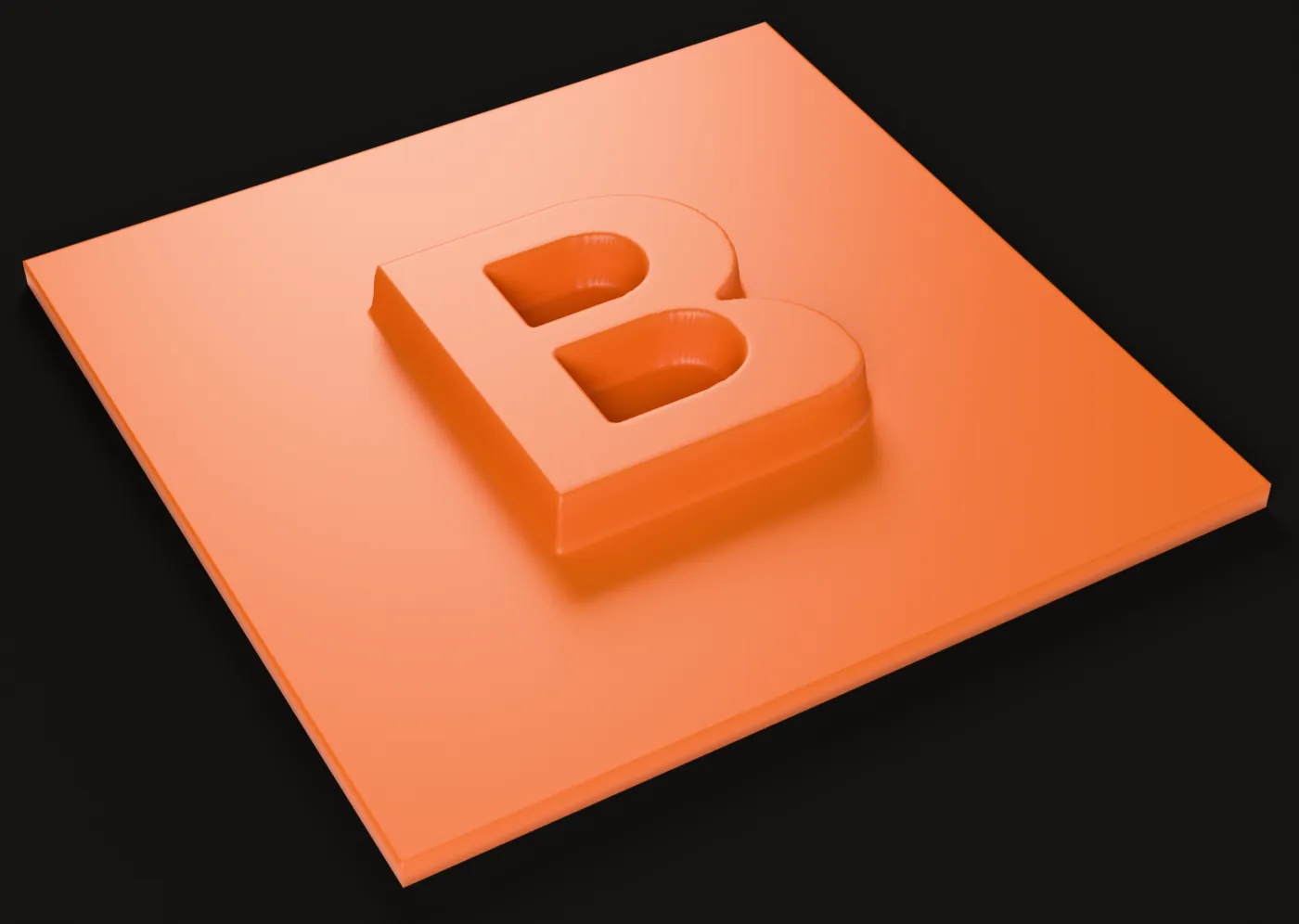
- Open our free image to STL tool.
- Drop in a PNG, JPG or WebP picture. A logo on a clean background works best.
- Set the width in millimetres. The height follows the picture’s shape.
- Set the relief height and the base thickness.
- Preview the model, then download the STL.
The tool runs in your browser, so the picture never leaves your computer. Transparent parts of a PNG stay flat at the base, which makes clean cutouts.
If you want a photo that shows up when light shines through it, make a lithophane instead. See how to make a lithophane.
Way 2: Build it from shapes in Tinkercad
Tinkercad is a free 3D design app from Autodesk that runs in your browser. You build objects by stacking simple shapes, like boxes, cylinders and letters. You can also use any shape as a “hole” to cut into another one.
- Make a free account at Tinkercad and start a new design.
- Drag shapes onto the work plane. Resize them by dragging the handles or typing sizes.
- Set shapes you want to cut away to Hole.
- Select everything and click Group to join the pieces and cut the holes.
- Click Export, then under For 3D Print, choose .STL.
Tinkercad joins all your shapes into one part when it exports. It can also export OBJ and glTF.
Way 3: Design exact parts in a CAD program
When a part has to fit something real, like a phone, a shelf bracket or a replacement knob, use CAD. CAD programs work with exact sizes and let you change a measurement later.
- FreeCAD is free and open source.
- Fusion from Autodesk is free for personal use, if the project is not commercial and you earn less than $1,000 a year from it.
- OpenSCAD is free and works with code instead of a mouse. It exports STL and 3MF.
The usual steps are the same in all of them. Draw a 2D sketch with exact sizes. Extrude it into 3D. Add holes, rounded edges and details. Then export as STL, or as 3MF if you want the units saved. Our guide on 3MF vs STL explains the difference.
Way 4: Model or sculpt it in Blender
For organic shapes, like creatures, faces and statues, CAD feels stiff. Blender is a free 3D program that can model and sculpt anything.
- Model or sculpt your object. Keep it as one closed piece if you can.
- Apply any modifiers you want in the final shape.
- Check the size. Blender works in metres by default, and STL has no units. A model that is 0.1 units tall may print as 0.1 mm. Scale it so the numbers match the millimetres you want.
- Select the object and go to File, Export, STL (.stl).
- Keep the binary format, which is smaller than the text (ASCII) option.
Way 5: Generate it from a picture with AI
AI image to 3D tools turn one picture into a full 3D model, back and sides included. This is the fastest way to get a character, an animal or a figurine you could never model by hand.
In Bake3D:
- Upload a picture of the subject, up to 12 MB. One clear subject on a plain background works best.
- Generate the model. It costs 30 to 55 credits, depending on the quality level. New accounts get 70 free credits.
- Turn the model around and check it from every side.
- Pose it if you like, then open the Export tab and download an STL of the current pose.
AI models often use their own sizes. Check the size in your slicer and scale it on purpose. A model that is 1.8 units tall becomes 1,800 mm at scale 1.
What about ChatGPT
Chat assistants can make simple STL files. In a test by Tom’s Hardware, ChatGPT wrote the text of an STL cube, which printed after scaling. It also wrote OpenSCAD code for a cup, which the author exported as STL. This works for boxes, brackets and simple geometric parts. It does not work well for faces, animals or figurines.
Check the STL before you print
A file that downloads fine can still fail on the printer. Check these things first.
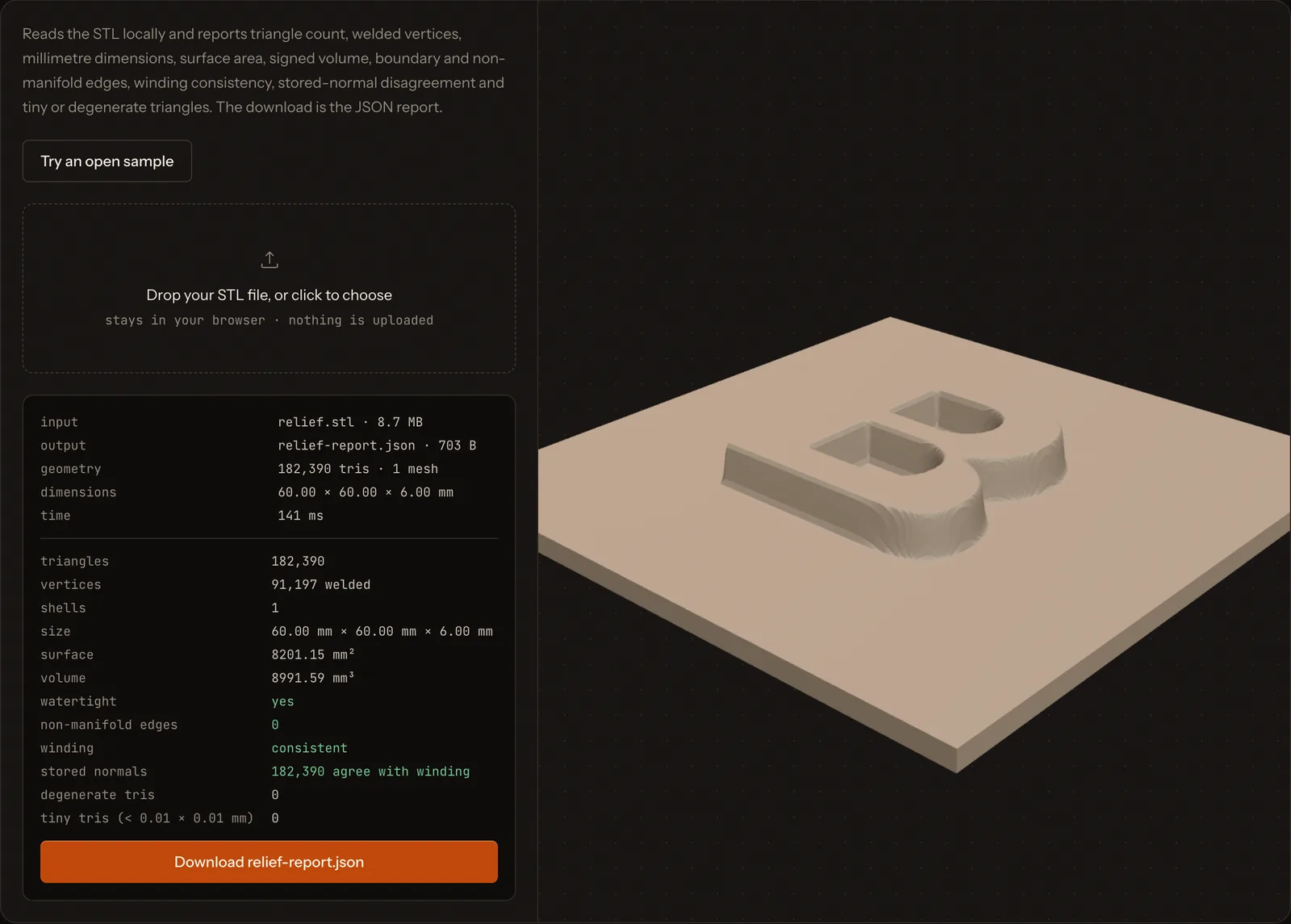
- Is it closed? An STL for printing should be watertight, with no holes in the surface. Open it in our free STL checker. It lists open edges, flipped faces and parts that do not connect.
- Is it the right size? The checker shows the real size in millimetres. Your slicer does too.
- Are the walls thick enough? Formlabs suggests at least 1 mm for walls on a filament (FDM) printer, and 1.2 mm is safer with a standard 0.4 mm nozzle. Resin printers can go down to about 0.2 mm.
- Does it have a flat base? A flat bottom sticks to the bed better.
- Are there steep overhangs? Parts that lean out past about 45 degrees usually need supports.
Common STL problems and quick fixes
- The model is tiny or huge. The file was made in a different unit. Scale it by 1,000 (metres to millimetres) or 25.4 (inches to millimetres).
- Holes or open edges. Close them in your modeling program, or use a repair tool. The checker shows where they are.
- Flipped faces. Some triangles face inward. Most modeling programs can recalculate the normals so they all face out.
- The file is too big. Too many triangles. Reduce them. See how to reduce polygon count.
- Floating parts. Pieces that do not touch the rest will fall over during the print. Join them or add supports.
Now that you have an STL, you can slice it and print. If you want to keep your slicer settings with the model, save the project as 3MF.
Questions people ask
What is the easiest way to make an STL file?
For a flat design, like a name sign or a logo, upload a picture to a free image to STL tool. For a simple object, use Tinkercad in your browser. Both take minutes and need no 3D skills.
Can I make an STL file for free?
Yes. Tinkercad, Blender, FreeCAD and OpenSCAD are free, and our image to STL and lithophane tools are free and run in your browser. Fusion is free for personal, non-commercial use if you earn less than $1,000 a year from it.
Can ChatGPT make STL files?
For simple shapes, yes. It can write STL text for a cube, or write OpenSCAD code that you then export as STL. Tom's Hardware tested both. It does not work well for organic shapes like faces, animals or figurines. For those, use an image to 3D tool.
Can Blender make STL files?
Yes. Blender can export any mesh as STL with File, Export, STL. Check the scale first, because STL files have no units and Blender works in metres by default.
How do I make an STL file from a picture?
For a flat relief or a lithophane, use our free image to STL or lithophane tools. For a full 3D object with a back and sides, use an AI image to 3D tool and export the result as STL. Our guide on how to 3D print a picture compares the options.
Sources
About this guide
Written and kept up to date by the Bake3D team. We build a tool that turns one image into a textured, rigged and animated 3D model, and we test the steps in our guides on our own files. First published . See how we write and check guides, or send a correction to hello@bake3d.ai.
Keep reading
3D printing
3MF vs STL vs OBJ: Which File Format Is Best for 3D Printing?
STL, 3MF and OBJ compared for 3D printing: what each file stores, which slicers open them, and which one to pick for your next print.
3D printing
How to Make a Lithophane From a Photo
Make a 3D printed lithophane from any photo. Pick the right picture, set thickness in millimetres, print it standing up and light it well.
Image to 3D
How to Turn a 2D Image Into a 3D Model
Three ways to turn a picture into a 3D model: AI from one image, photo scanning from many photos, or modeling by hand. Steps, costs and limits.