How to Convert GLB to FBX (and FBX to GLB)
Most GLB to FBX converters keep the shape and drop everything else. If your model has a skeleton and animation, you need a converter that keeps them. This guide shows two free ways: our browser converter, and Blender with the exact settings. It also shows how to fix the usual problems on the other side.
By the Bake3D teamUpdated 7 min read
Short answer
The quickest way is our free GLB to FBX converter, which runs in your browser and keeps the skeleton, skin weights, every animation and the base color texture. For full control, import the GLB into Blender and use File, Export, FBX with Path Mode set to Copy, Embed Textures on, Add Leaf Bones off and Baked Animation on. Then check the scale, textures and each clip in your engine.
How we checked this: Our free converter is tested by reading its FBX back with three.js and comparing every vertex with the original glTF at rest and during animation, and by importing its output into Blender 4.4. The menu paths and option names match Blender 5.2 LTS. We read the option defaults from the source code of Blender's FBX add-on, because the manual leaves some of them blank. Bake3D's own FBX export has been checked by importing it into Blender 4.4. We have not yet run our FBX files through Unity or Unreal Engine ourselves.
GLB and FBX can both hold a full animated character: the mesh, the textures, the skeleton, the skin weights and the animation. So a conversion between them should lose very little. The trouble is that each format stores units, bone directions and materials a bit differently. Most problems after a conversion come from those three things. Pick the right settings and they go away.
First, do you really need FBX?
Check what your destination reads before you convert.
| Destination | Reads GLB? | Reads FBX? | What to use |
|---|---|---|---|
| Unity | With the glTFast package | Yes, its main format | FBX, or GLB with glTFast |
| Unreal Engine | Yes, through Interchange | Yes, its classic pipeline | Either |
| Godot 4.3 and newer | Yes, recommended | Yes, built in | GLB |
| Blender | Yes | Yes | Either |
| Roblox Studio | Yes | Yes | Either |
| Web pages and three.js | Yes | Not well | GLB |
If your target reads GLB well, keep it. Every conversion is a chance for something to go wrong. Convert when a tool, a team or a store asks for FBX.
The quick way: a free GLB to FBX converter
Our GLB to FBX converter does the whole job in your browser. Drop in a GLB, pick a frame rate and download the FBX.
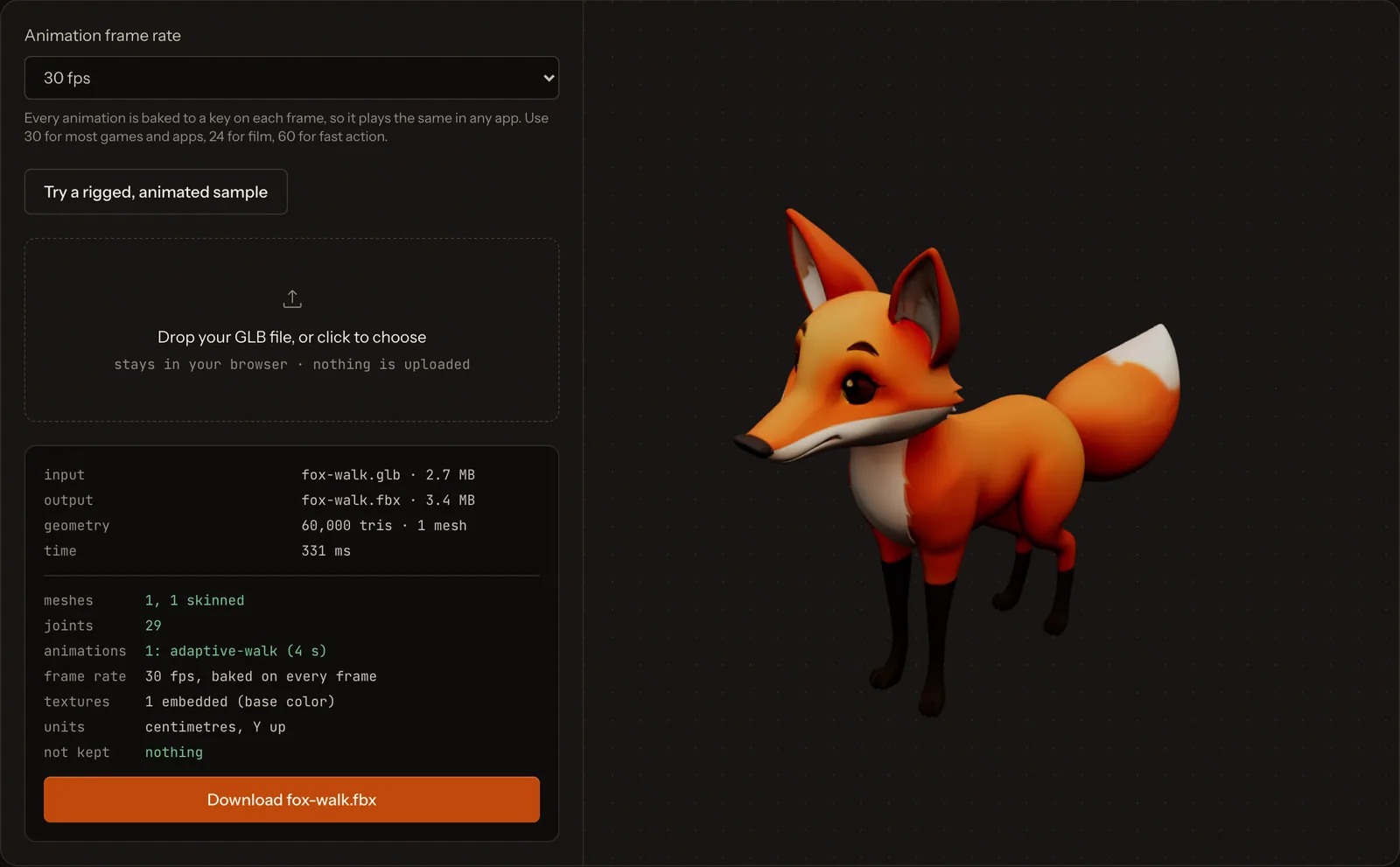
It keeps:
- the node hierarchy, the skeleton and the skin weights;
- every animation, each as its own take, baked on every frame with every joint keyed;
- static meshes, material slots and the base color texture, packed inside the file.
It does not keep morph targets, cameras, lights, vertex colors or maps other than base color. It also cannot read files with Draco compression or separate .bin files. The report beside the download lists anything it left out. If you need one of those, use Blender, as shown below.
What survives a GLB to FBX conversion
| Part | Survives? | Notes |
|---|---|---|
| Mesh and UVs | Yes | Four-sided faces are already triangles in glTF |
| Base color texture | Yes | Only if you embed or copy the textures |
| Metal, roughness and normal maps | Partly | You may need to reconnect them in the target app |
| Skeleton | Yes | Bone direction settings change how bones look, not how they move |
| Skin weights | Yes | |
| Animation | Yes | Each animation becomes its own clip, called a take or stack |
| Shape keys | Test it | Check your blend shapes in the target after export |
| Rig controls and constraints | No | Only their baked result is kept |
How to convert GLB to FBX in Blender
Blender is free and handles rigged, animated files well. These steps match Blender 5.2 LTS.
- Open Blender and delete the default cube, camera and light.
- Go to File, Import, glTF 2.0 (.glb/.gltf) and pick your GLB.
- Check the import. Press play on the timeline. Blender plays the first animation. Each glTF animation is stored as an action on its own track in the Nonlinear Animation editor.
- Select the model. Click the armature and the mesh, or press A to select all.
- Go to File, Export, FBX (.fbx).
- Set the options from the table below, pick a file name and click Export FBX.
The FBX export settings that matter
| Section | Setting | Set it to | Why |
|---|---|---|---|
| Include | Object Types | Armature and Mesh | Leaves out stray lights and cameras |
| Include | Limit to Selected Objects | On, if you selected the model | Exports only what you picked |
| Transform | Apply Scalings | All Local (the default) | Try FBX Units Scale if the size is wrong in your engine |
| Transform | Forward and Up | -Z Forward, Y Up (the default) | Matches most game engines |
| Transform | Apply Transform | Off | Blender marks it as experimental and known to break armatures |
| Path Mode | Path Mode | Copy | Needed to put textures inside the file |
| Path Mode | Embed Textures | On (the small box icon) | Packs the images into the FBX |
| Armature | Add Leaf Bones | Off | Stops extra bones ending in _end |
| Armature | Primary and Secondary Bone Axis | Y and X (the default) | Only change these if bones look sideways in another app |
| Animation | Baked Animation | On | Stores a value for every bone on every frame |
| Animation | NLA Strips and All Actions | Keep one if you see doubled clips | Both are on by default and can export the same motion twice |
A good habit: save these choices as an Operator Preset with the plus button at the top of the export window. Next time it is one click.
Fix the usual problems
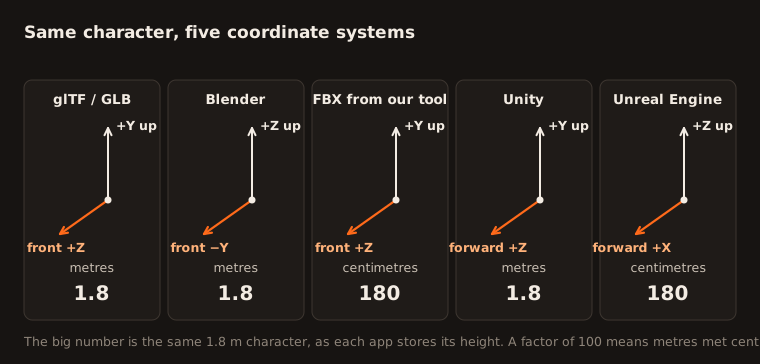
The model is 100 times too big or too small. FBX files treat one unit as a centimetre. Blender and glTF use metres. Blender’s source code notes that it scales by 100 when no unit is set. If your engine then reads the unit and the object scale in a different way, you get a jump of 100. Try the other Apply Scalings option, or turn on the unit conversion in your engine’s importer. In Unity, it is called Convert Units.
There are extra bones named something_end. These are leaf bones. Export again with Add Leaf Bones turned off.
The textures are missing or grey. The FBX saved paths to image files instead of the images. Export again with Path Mode set to Copy and Embed Textures turned on.
The animation names look like Armature|Walk. Blender names each clip with the object name, a bar and the action name. Rename the actions in Blender before export if you need clean names.
The same animation appears twice. Turn off either NLA Strips or All Actions and export again.
The bones point the wrong way in Maya or 3ds Max. FBX bones usually point along the X axis. Blender’s point along Y. This does not change how the model moves. If it bothers you, change Primary Bone Axis and Secondary Bone Axis.
The mesh does not follow the skeleton. Check that the mesh has an Armature modifier pointing at the armature, and that the vertex groups have the same names as the bones.
How to convert FBX to GLB
The reverse trip is simpler, because glTF has fewer options.
- In Blender, go to File, Import, FBX (.fbx). Since Blender 5.0, the default FBX importer is a newer, faster one. The older one is still there, marked Legacy.
- Check the scale, the materials and each animation.
- Go to File, Export, glTF 2.0 (.glb/.gltf).
- Pick glTF Binary (.glb) as the format.
- In the Animation section, keep animations on. If you have several, check that each one is its own action.
Two things to watch. glTF only uses PNG and JPEG textures in its core format, so other image types get converted or dropped. And glTF uses a fixed material model with base color, metal and roughness, so custom FBX materials are simplified.
For a static FBX with no rig, our free FBX to OBJ converter runs in your browser, and the OBJ to GLB converter takes it the rest of the way.
Skip the conversion if you can
The cleanest file is one that was exported in the right format to begin with. Bake3D exports both formats from the same model:
- GLB with the mesh, PBR textures, skeleton, skin weights and baked animation.
- FBX in binary version 7.4 with the skeleton, skin weights, an embedded base color texture and one baked animation clip per file.
We have checked our FBX files by importing them into Blender 4.4. We have not yet run them through Unity or Unreal Engine ourselves, so do a quick check in your engine. The image to 3D page shows the full workflow, and what a GLB file is explains the format in more depth.
Questions people ask
Can I convert GLB to FBX online for free?
Yes. Our free GLB to FBX converter runs in your browser, so nothing is uploaded, and it keeps the skeleton, skin weights, animations and base color texture. Many other online converters keep only the mesh. Blender is the other free option when you need more control.
Does converting GLB to FBX lose quality?
The mesh, UVs, skeleton, skin weights and baked animation come across as they are. Materials are the weak spot. FBX has no single standard for metal and roughness maps, so you may need to reconnect those textures in your engine.
Why is my FBX 100 times too big or too small?
FBX files treat one unit as one centimetre, while Blender and glTF use metres. If the target app reads the file's unit setting differently from the object scale, you see a 100 times jump. Change Apply Scalings in Blender's FBX export, or use the unit option in your engine's importer.
Why does my FBX have extra bones ending in _end?
Blender's FBX exporter adds a leaf bone at the end of every chain by default. Turn off Add Leaf Bones in the Armature section when you export for a game engine.
Can Unity open GLB files directly?
Not out of the box. Unity's own importer is built around FBX. To use GLB files in Unity, install the glTFast package. See our Unity guide.
Sources
About this guide
Written and kept up to date by the Bake3D team. We build a tool that turns one image into a textured, rigged and animated 3D model, and we test the steps in our guides on our own files. First published . See how we write and check guides, or send a correction to hello@bake3d.ai.
Keep reading
File formats
What Is a GLB File?
A GLB file is a whole 3D model in one file. Learn what it holds, how it differs from glTF and FBX, and how to open it on Windows, Mac or the web.
Unity
Bring an animated GLB into Unity
Import an animated GLB into Unity with glTFast or the Bake3D editor tool, then check its clips, root motion and skeleton setup before you use it.
Unreal
Import a Bake3D animated GLB into Unreal Engine 5
Import a Bake3D animated GLB or FBX into Unreal Engine 5 with the editor scripts or Interchange, then check units, facing, root motion and playback.